Lovable Drafts: What Accept Really Changes
Accept does not publish your site, but it changes your real database right away. What moves, what stays behind, and what to check before you press it.
Don't feel like reading? Link for agents
You've been working inside a draft for a while. The new feature looks good, you've clicked around, nothing is on fire. And up in the corner, right where the Publish button usually lives, there is a button that says Accept.
Most people I talk to read that button one of two ways. Either "this is Publish with a different name", or "this just saves my work". It is neither, and the difference matters the day your app has real users.
Accept moves your draft's changes into your main project. It does not publish your site. But if your draft changed your database, that part goes live the moment you accept.
To see why, it helps to slow down and look at where your work actually lives. (If drafts are new to you, start with Lovable Drafts: A Safe Place to Try Changes and come back.)
Three places your app lives
Even before drafts existed, your Lovable app lived in two places.
The first is your main project. That's the version you see when you open the editor, the one you chat with every day. Lovable calls it main.
The second is your published site, the one your visitors open at your URL. The two are not the same thing. You can change main all afternoon and your visitors see nothing new until you press Publish. Publish is the step that copies main out to the world.
A draft adds a third place: a copy of main where you can experiment. So now there are two steps between an idea and your visitors.
- Accept carries your work from the draft into main.
- Publish carries main out to your published site.
If that were the whole story, Accept would be completely harmless. Your work would land in main and wait there quietly until you published. And for your code, that is exactly what happens.
The database is where it gets interesting.
Your code can wait. Your database can't
Your code can exist in three copies at once without any trouble: one in the draft, one in main, one published. Your real database is different. There is one, and both main and your published site talk to it.
A quick bit of vocabulary, because it makes everything after this easier. A database has two sides:
- The data is what's stored: your users, their orders, their messages.
- The structure, which developers call the schema, is the shape of that storage: which tables exist, which fields each table has, and the rules about who can read or change what.
When you ask a draft for something that needs a new field, say a "city" field on a signup form, Lovable has to change the structure. It does that by writing a migration, which is basically a small file of instructions: "add a field called city to the signups table". Inside the draft, that migration runs against the draft's own practice database, so you can try the feature without touching anything real.
Then you press Accept. Your code moves into main, and main now expects a "city" field to exist. So Lovable runs that same migration on your real database, right then. It has to, or main would be broken.
That's the part worth knowing ahead of time. Your visitors are still looking at the old published site, and the database behind it has already changed.
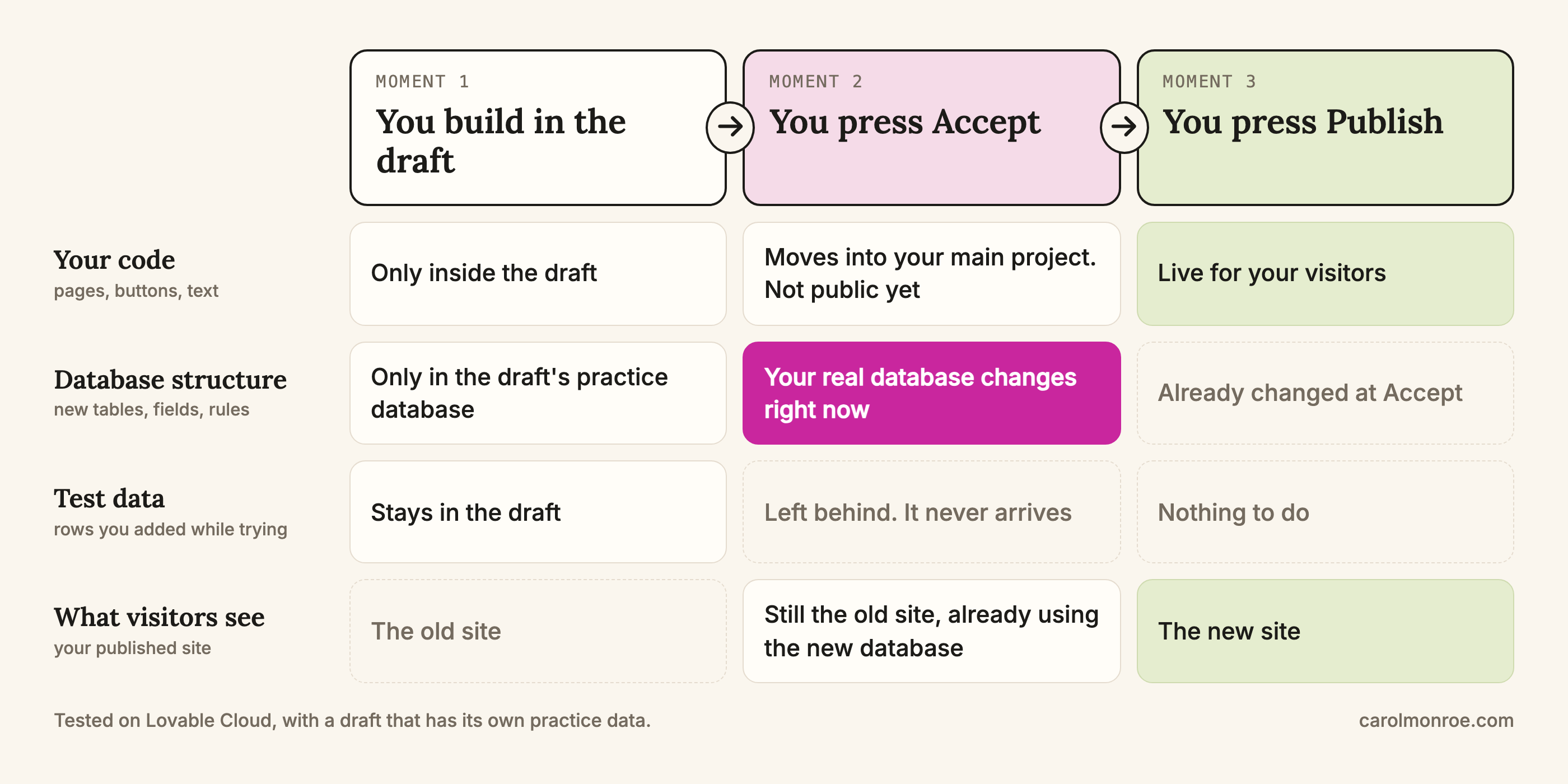
Here is the whole thing in one picture.
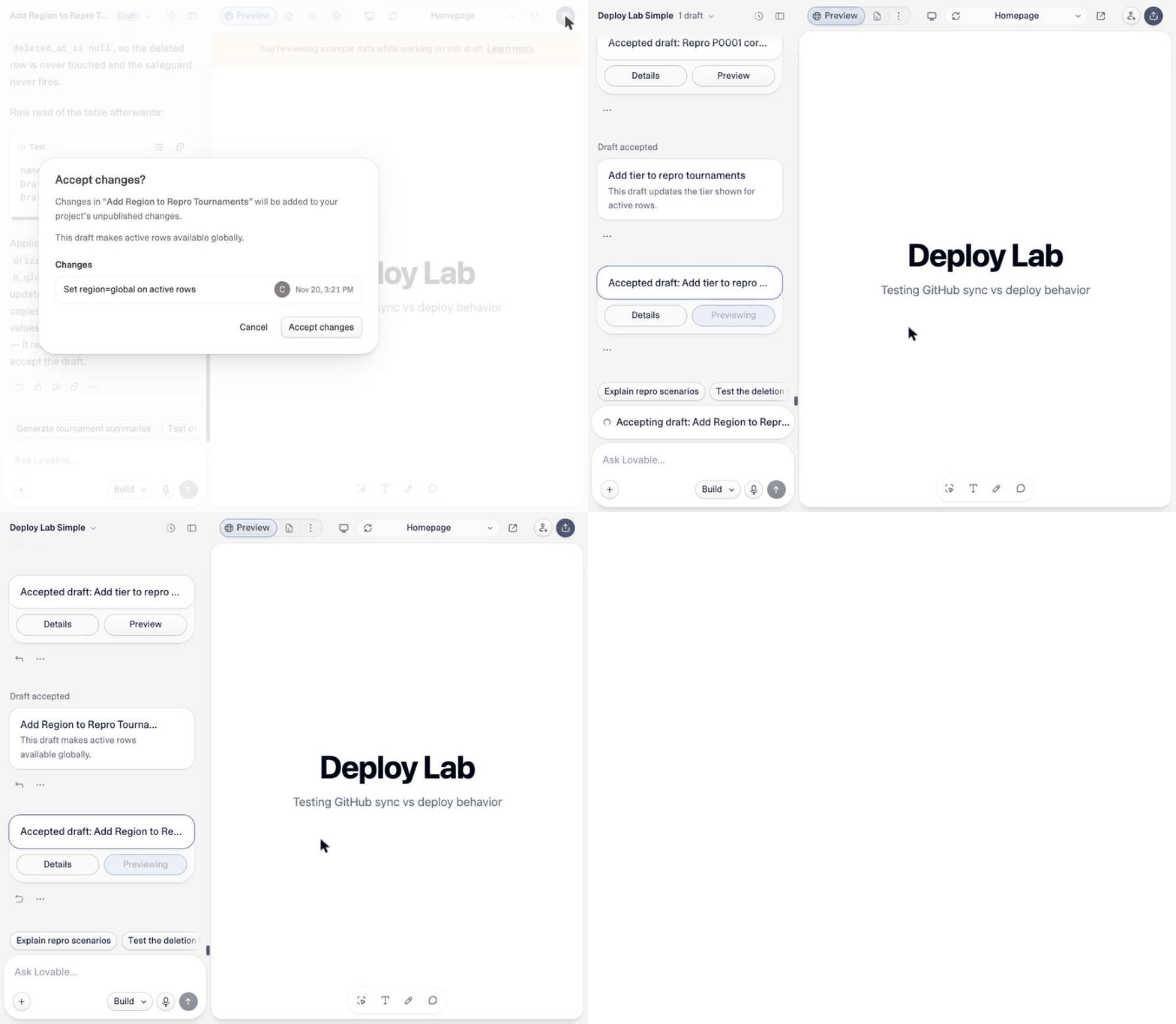
And this is what the moment itself looks like. Notice that the dialog lists your changes and says they "will be added to your project's unpublished changes". It doesn't mention the database at all.
I didn't want to take that on faith
A diagram is nice, but I wanted to watch it happen. So I built a small signup app on Lovable Cloud and put three real people in it: Ana, Luis and Marta.
Inside a draft, I asked for a new field and added a test person called "Draft Tester". Then I opened the real database directly, with SQL, and looked at it twice: once before pressing Accept and once after, without publishing anything in between.
| Before Accept | After Accept, before Publish | |
|---|---|---|
| Fields in the real database | The original ones | The original ones plus the new field |
| People in the real database | Ana, Luis, Marta | Ana, Luis, Marta |
| "Draft Tester" | Only in the draft | Never arrived |
Two things happened, and both are good to know. The new field appeared in the real database immediately, which confirms the pink box. And "Draft Tester" never showed up, which means the mess you make while testing stays in the draft.
The structure travels and the test data doesn't. For a tool whose whole job is letting you experiment, that's the right design.
The in-between moment
So after Accept and before Publish, you are in an in-between state: your visitors are on the old site, and the old site is talking to the new database.
Most of the time that's fine. If your draft only added things, a new field or a new table, the old site simply doesn't know they exist and carries on.
The one case to keep an eye on is when a draft renames or removes something. The old site is still asking for the thing by its old name. If it's gone, parts of your live site can break before you've published a single line.
There's an easy habit that covers it: if your draft renames or removes anything in the database, publish right after you accept, so the in-between moment lasts seconds instead of hours.
Lovable also protects you here more than I expected. I asked a draft to remove a field that had real data in it, and Lovable refused. Changes like that are called backward incompatible, meaning older code can't live with them, and they need a permission named "Execute backward incompatible database migrations" that is off unless you turn it on. After I accepted, the field was gone from the app's screens, and the data was still sitting safely in the real database.
What Lovable does not do for you is make a backup at Accept. The docs recommend exporting your database first, and I'd treat that as a habit, not a suggestion. You'll see why in a second.
And if I change my mind?
Since Accept touches the database, I wanted to know what "undo" means afterwards. I accepted a draft that added a field, then used version history, which is Lovable's way of going back to an earlier point, to revert it.
The code came back. The database did not. The new field and everything stored in it stayed exactly where they were, and the Revert dialog never mentioned it.
That makes sense once you think of the two sides again. Version history is a history of your code. Your database has its own life. If you need the database back as well, you have two options: the daily backup, where you lose anything newer than the backup, or the export you made before accepting.
Which is the real reason for that export.
The case that taught me the most
Everything so far went the way I'd hoped. This next one comes from a real support case, and it changed how I'd set up any serious project.
Someone had a tournaments table with a safety rule in the database: once a tournament is marked as deleted, nothing can change it. That rule lived in the database itself, so no screen or script could get around it.
In a draft, they asked for a new field, filled in on every row. In the draft it worked perfectly. At Accept it failed, with a Postgres error code, P0001, which is what the database returns when a rule you wrote says no.
Why would the same change work in one place and fail in the other? Because the draft's practice database had no deleted tournaments, and the real one did. The draft was practicing on data that was cleaner than real life.
I reproduced it on my own project, and there was good news and less good news.
The good news: a failed Accept changes nothing. No new structure, no new code. My project stayed exactly as it was, and the full error was right there to read.
The part to know: that migration stays attached to the draft. A migration that already ran in a draft can't be edited, and the Update button just runs the same one again. What worked was starting a fresh draft with the corrected migration, and asking Lovable to bring the rest of the work over:
Copy these files from commit <sha> using git show, without importing its migrations: <paths>
Send it from a fresh draft. A draft only sees changes that existed when it was created, so an older draft will say it can't find the commit.
That solved the case. But the better question is how to never get there.
Teach your drafts what your real data looks like
A draft's practice database doesn't come from nowhere. Lovable builds it from a file in your project called db/seed.sql. A seed file is a list of starter rows, the sample data a fresh database begins with. If the file isn't there, Lovable invents some.
So I added one deleted tournament to db/seed.sql and ran the exact same change again.
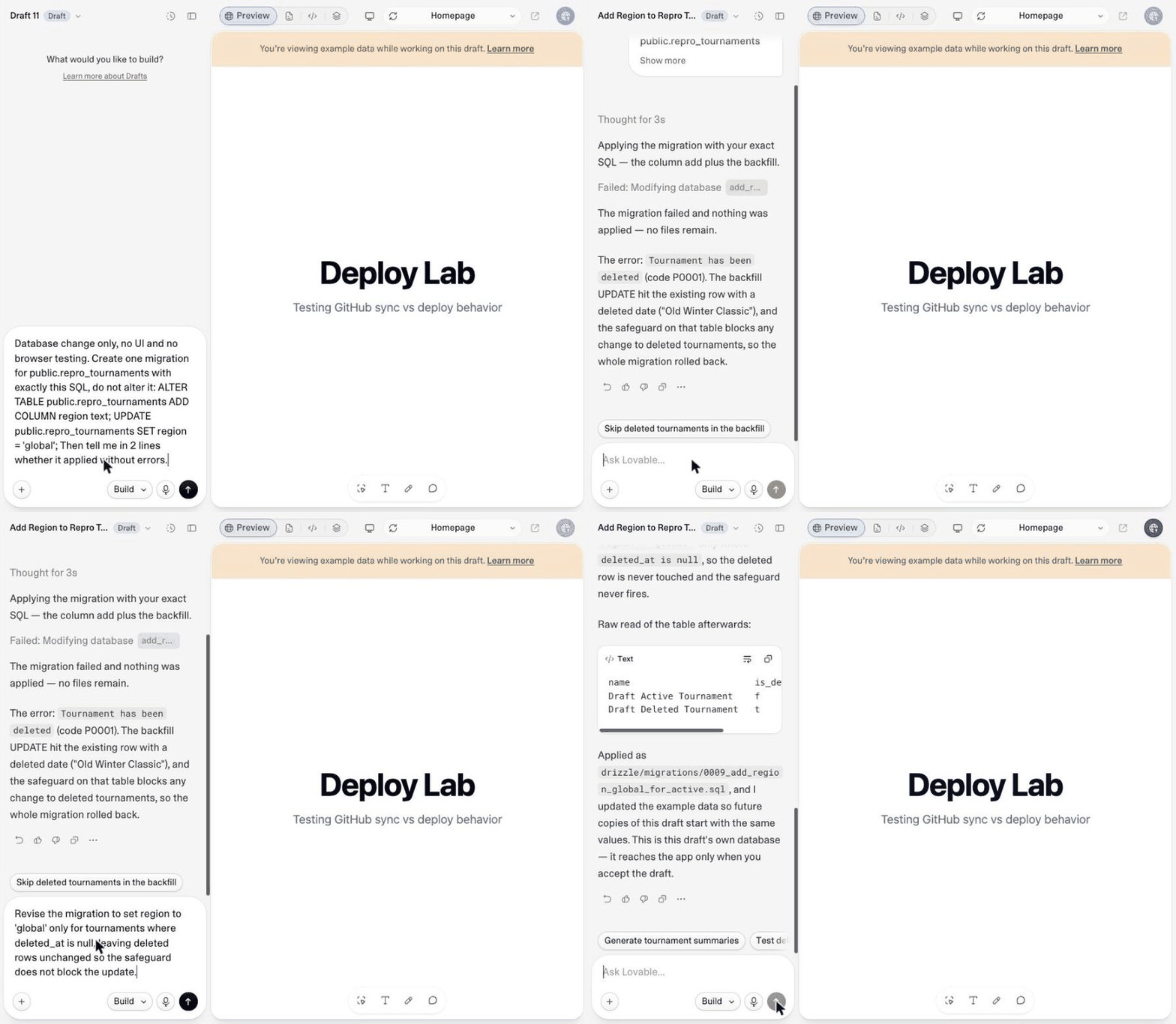
This time it failed inside the draft, where failing is free. And because a migration that fails while it's being applied leaves nothing behind, I could correct it right there, in the same draft.
That makes db/seed.sql the most useful file in a project that uses drafts. Put your messy cases in it: deleted records, old values, empty fields, the weird account from 2023. Every new draft starts from that file, which also means everyone on your project tests against the same reality.
One more thing: two drafts, same spot
Drafts are great for comparing two versions of an idea, so sooner or later you'll have two open at once. I tested what happens when they overlap.
I opened two drafts that changed the same headline, accepted the first, then updated the second so it had the latest main. The second draft kept its own headline and quietly dropped the one I had just accepted. No warning, no question. Whichever you accept last is the one that stays.
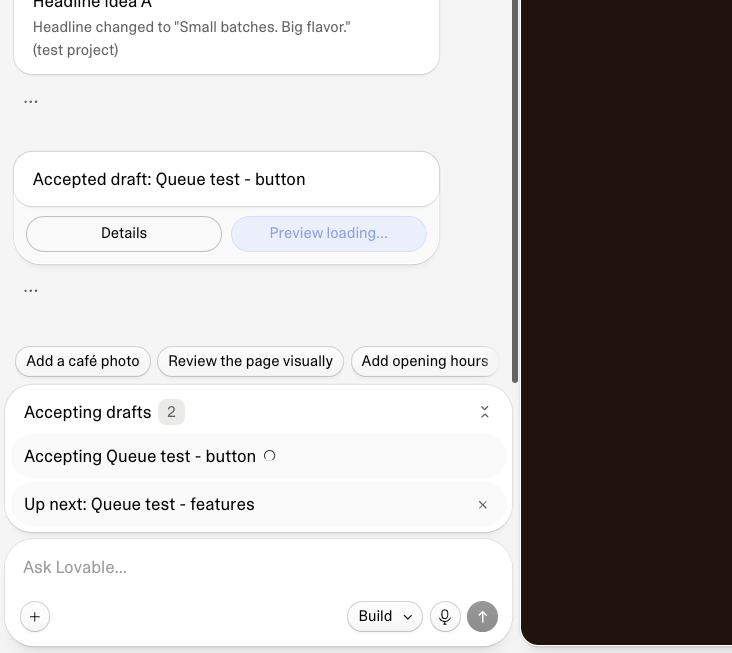
When two drafts touch different things, there's no drama at all. I accepted two of them a second apart, and Lovable simply queued them.
So the rule I follow is simple: pick one version, accept it, and delete the others.
Before you press Accept
All of this fits in a short list. I run through it every time now:
- Banner or no banner? If the draft never showed the "example data" banner, the data you touched in it was real.
- Export your database. There is no automatic backup, and undo only brings back the code.
- Does the draft rename or remove anything? Then publish right after you accept.
- Does your practice data look like your real data? If not, add the messy cases to
db/seed.sqland test again. - Other drafts touching the same thing? Delete them.
Put together, this makes Accept a button you understand, and that's the best kind of button to press on an app with real users. Drafts did their job in every one of these tests: my real data was never at risk while I experimented.
Quick answers
Does Accept publish my Lovable site?
No. Accept moves the draft's changes into your main project as unpublished changes. Your site changes when you press Publish, like always.
When does my database change, at Accept or at Publish?
At Accept. New tables, fields and rules reach your real database right then, before you publish.
Does test data from a draft reach my real data?
Not on Lovable Cloud in my tests. The test person I added inside the draft never arrived. Only the new field did.
Can I undo an accepted draft?
You can bring the code back with version history. The database does not come back: the new field and its data stayed in my test.
Is there a backup when I accept a draft?
No automatic one. Export your database before you accept.
What happens if Accept fails?
Nothing changes. In my test the project stayed exactly as it was, and the full error was shown.
If this made Accept feel friendlier, leave a note in the reader margin below. I read every one.
This is the second post in my series on Lovable Drafts. The first one covers what a draft is and how it helps you. After this one: drafts with your own Supabase, where a few of these rules change, staging on Lovable with your own Supabase, and common questions and quick fixes.
I tested Drafts from November 17 to 20, 2026, on four throwaway projects of my own. Everything in this post was tested on Lovable Cloud. Sources: the Drafts docs and the database backups docs.
Reader margin
What stayed with you?
Leave one small mark in the margin.
Notes from readers
The margin is open. You can leave the first note.
Stuck with something like this? I fix it daily → Services