Migrate from Lovable Cloud Using Claude Code
📌 Update (July 2026): Lovable Cloud now has an official exit! Export project data, Pause Cloud, and Remove Lovable Cloud all live under Cloud > Overview > Advanced settings. The guide below still works and remains useful for deep details, but there is a much easier official path now: Leaving Lovable Cloud Is Finally Official (And It Might Make You Stay).
📌 Update (May 2026): This guide has been superseded. The Lovable MCP now handles the entire migration process - no REST API calls or manual schema recreation needed. Passwords can be fully migrated. See the 2026 Migration Guide for the current method.
This is an alternative migration path. If you prefer a visual approach with GitHub Desktop, check out the main migration guide. This guide uses Claude Code to automate most of the process.
Understanding the Vibes
When you click "Connect Supabase" in Lovable and don't select your own project, Lovable creates a managed Supabase instance for you. This is called Lovable Cloud.
It's convenient — you get a database without setup. But it comes with limitations:
- No SQL access — Can't run queries directly
- No custom auth — Only Google and Email
- No email templates — All emails from no-reply@auth.lovable.cloud
- No disconnect — Once enabled, permanent
- No monitoring — No real-time metrics
This guide helps you migrate to your own Supabase where you have full control.
What Makes This Different?
In the main guide, you do everything manually: clone repos, copy files, run SQL queries, import data.
With Claude Code, you tell it what you want and it does the work:
- Discovers your database schema automatically
- Exports all your data to JSON files
- Creates your new Supabase project
- Runs all your migrations
- Imports your data
- Updates your credentials
Same result, less clicking — or at least someone to troubleshoot with when things break.
What is Claude Code?
Claude Code is a command-line tool made by Anthropic that lets you chat with Claude directly in your terminal. Instead of copy-pasting between a chat window and your code, Claude Code can:
- Read your project files
- Run commands for you
- Make edits to your code
- Connect to APIs (like Supabase!)
Think of it as having Claude sitting next to you, but with access to your keyboard.
What You'll Need
Accounts:
- A GitHub account (free at github.com)
- A Supabase account (free at supabase.com)
- A Claude account with Pro plan ($20/month at claude.ai)
Your Lovable project:
- Already connected to GitHub
Time: About 30-45 minutes
Step 0: Install Claude Code + Supabase MCP
Already have Claude Code? Type
claudein your terminal. If it opens, skip to "Connect Claude Code to Supabase".
How to Install Claude Code
On Mac:
Open Terminal (Press
Cmd + Space, type "Terminal", press Enter)Paste this command:
curl -fsSL https://claude.ai/install.sh | bash
- Close and reopen Terminal (important!)
On Windows:
Open PowerShell as Administrator
Paste this command:
irm https://claude.ai/install.ps1 | iex
- Close and reopen PowerShell
Claude Code Pricing
Claude Code requires Claude Pro ($20/month). The pay-as-you-go option exists but is expensive and unpredictable — I don't recommend it.
Go to claude.ai/upgrade to subscribe. It's a paid service, no free tier for Claude Code.
First Run
claude
This opens your browser automatically. Log in with your Claude account and you're set.
Connect Claude Code to Supabase
Run this command:
claude mcp add --transport http supabase https://mcp.supabase.com/mcp
To verify, open Claude Code and type /mcp. You should see supabase in the list.
Step 1: Transfer Your Repository
Your code lives in a repository controlled by Lovable. We need to transfer it to YOUR GitHub account.
How to Transfer
- Open your project in lovable.dev
- Click the GitHub button in the top toolbar
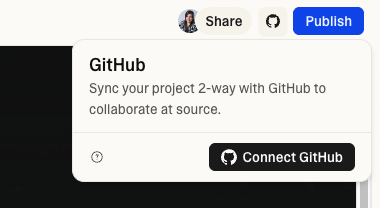
- Click Settings
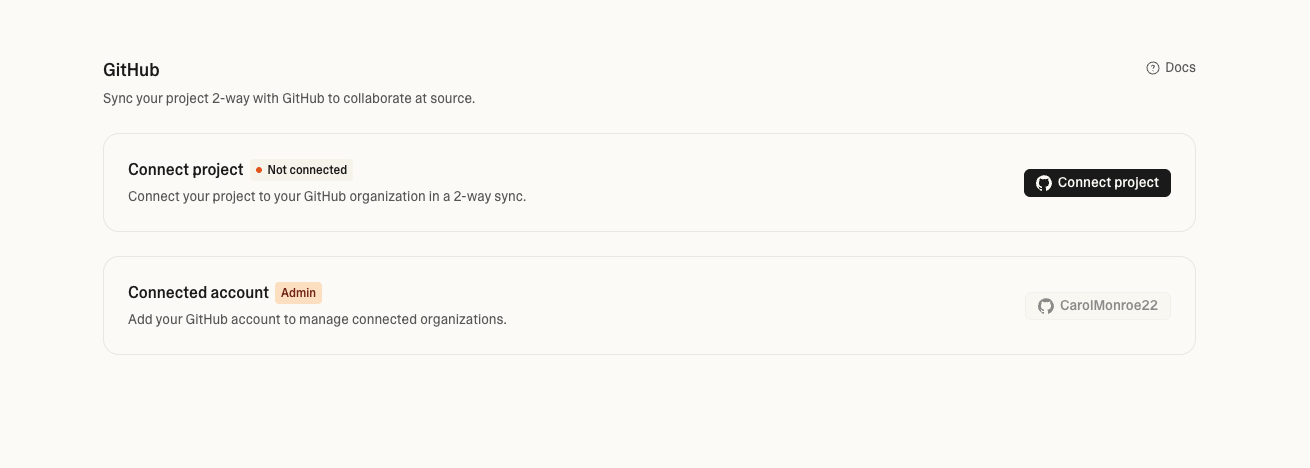
- Find Transfer ownership and click it
- Select your personal GitHub account and confirm
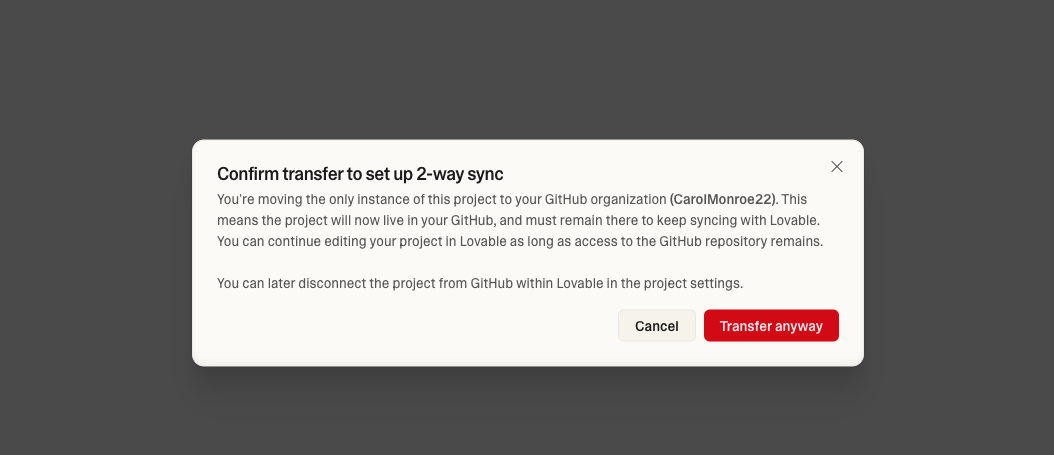
Done! The repository now belongs to YOU.
Step 2: Clone with Claude Code
Open Terminal and navigate to where you want your project:
cd ~/projects
claude
Tell Claude:
Clone my GitHub repository [YOUR-REPO-URL] to this folder.
Then explore what I have - find the Supabase credentials, list tables, Edge Functions, and migrations.
Claude will:
- Clone the repo for you
- Read your
.envfile to find credentials - Parse
src/integrations/supabase/types.tsfor tables - List Edge Functions in
supabase/functions/ - Count migrations in
supabase/migrations/
Save this summary — you'll need it later.
Step 3: Export Your Data
Tell Claude:
Export all my data from Lovable Cloud.

For each table, use the REST API and save to ./export/tables/{table_name}.json
Claude will create the folders and export each table automatically.
Step 4: Export Storage (If You Have Files)
Ask Claude:
Does this project use Supabase Storage? If yes, download all files to ./export/storage/
Step 5: Create Your New Supabase Project
Tell Claude:
Create a new Supabase project for this migration.
Show me my organizations first.
Claude will show your organizations and guide you through creating the project.
Cost: Supabase gives you 2 free projects. Use one of those! If you need more, Pro plan is $25/month.
Step 6: Apply Migrations
Tell Claude:
Apply all migrations from supabase/migrations/ to my new project.
Skip any that fail and tell me which ones.
Some migrations may fail — this is normal. Lovable Cloud migrations sometimes have duplicates or missing dependencies. The important tables will be created.
Step 7: Import Your Data
Tell Claude:
Import all data from ./export/tables/ into my new Supabase project.
Step 8: Upload Storage Files
If you exported storage:
Create the storage buckets and upload all files from ./export/storage/
Then update any URLs in the database that point to the old project.
If you get RLS errors, ask Claude to create a policy that allows uploads.
Step 9: Deploy Edge Functions
If you have Edge Functions:
Deploy all Edge Functions from supabase/functions/ to my new project.
Edge Functions that use secrets (API keys) will need those configured in Dashboard → Edge Functions → Secrets.
Step 10: Update Credentials
Tell Claude:
Update .env to use my new Supabase project.
Search for any hardcoded references to the old project too.
Step 11: Connect to Lovable
Now connect your migrated code to a fresh Lovable project.
Important: Lovable doesn't import existing GitHub repos. You create a blank project, connect GitHub (which creates a new repo), then push your code there.
Steps:
1. Create blank project in Lovable
Go to lovable.dev and create a new project. When asked what to build:
- Select "Other"
- Type:
Import existing project from GitHub
2. Connect GitHub
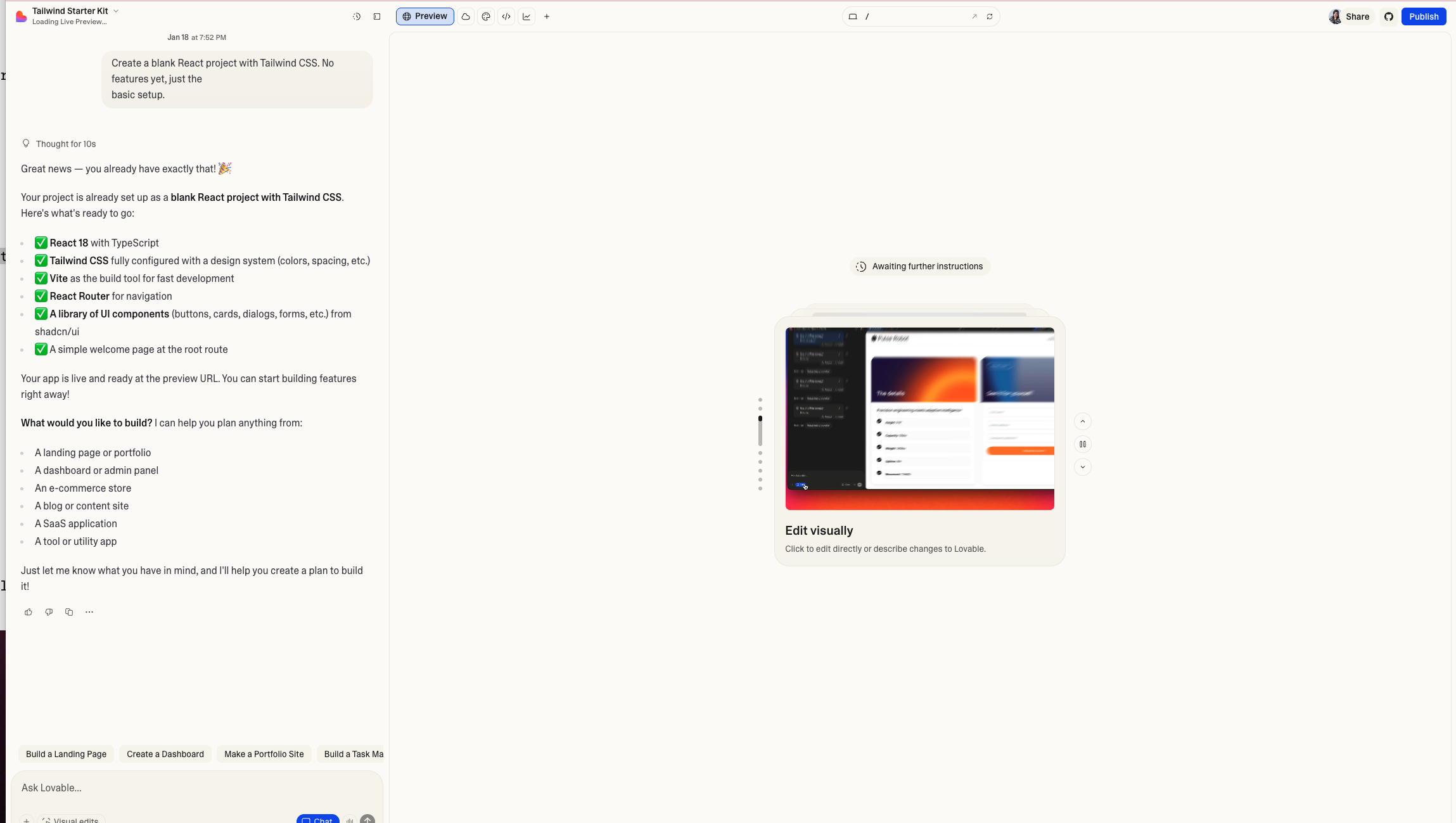
Click the + button and select Connectors:
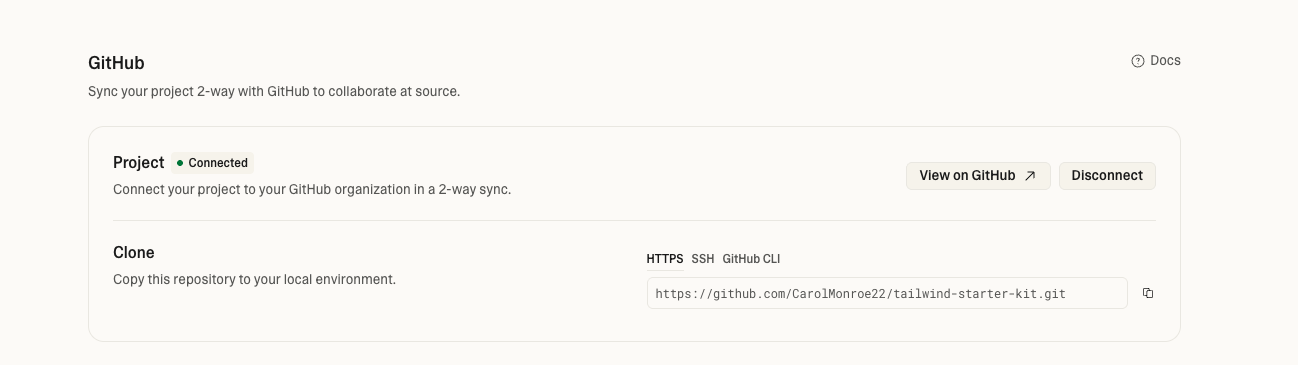
Go to Settings → GitHub → Connect. This creates a NEW repo in your GitHub account.
3. Tell Claude to push your code
Back in Claude Code:
Clone the new repo [NEW-REPO-URL] to /tmp/lovable-import
Copy all my migrated code there (everything except .git and node_modules)
Push to GitHub
Claude will:
- Clone the empty Lovable repo
- Copy your migrated code
- Commit and push
4. Wait for Lovable to sync
Lovable will detect the changes and rebuild your app. This takes 1-2 minutes.
5. Connect Supabase in Lovable
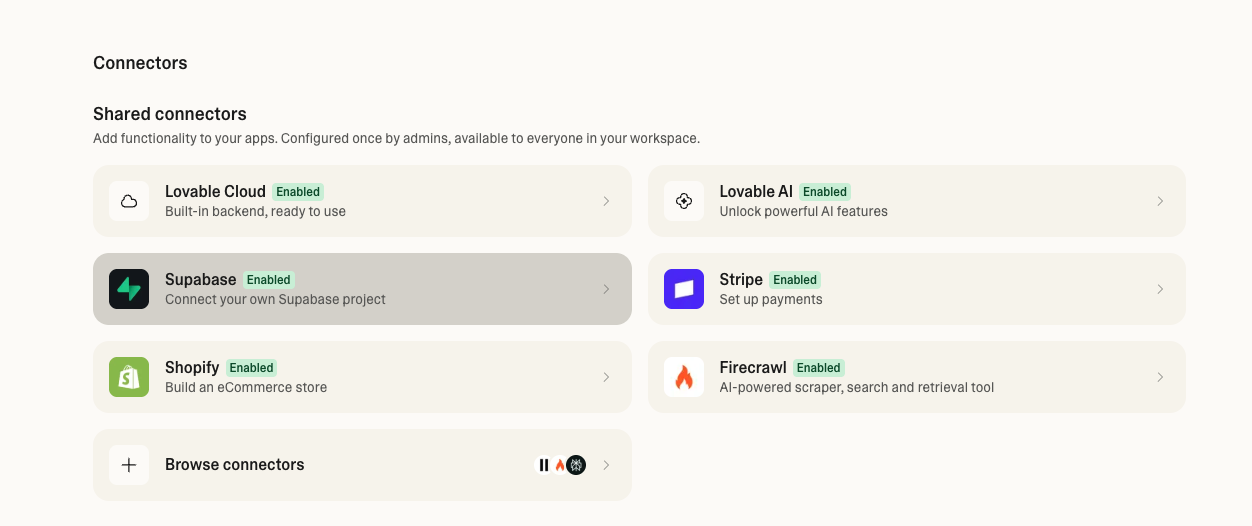
Go to Connectors → Supabase:
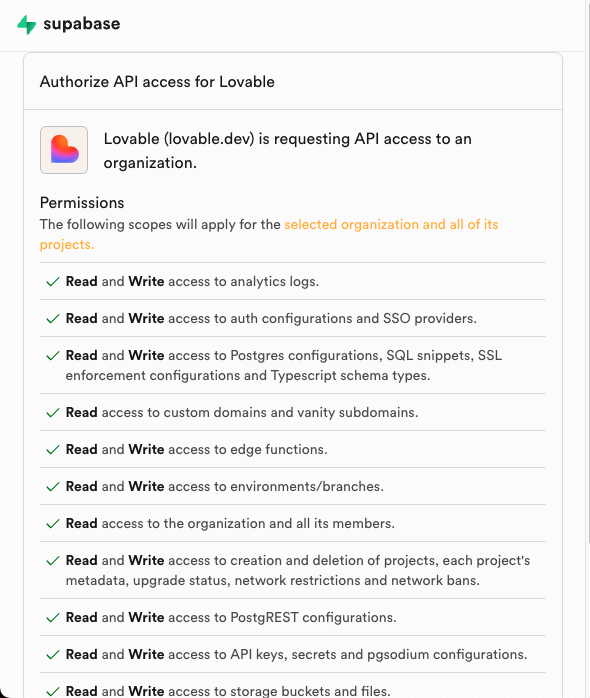
Authorize the connection:
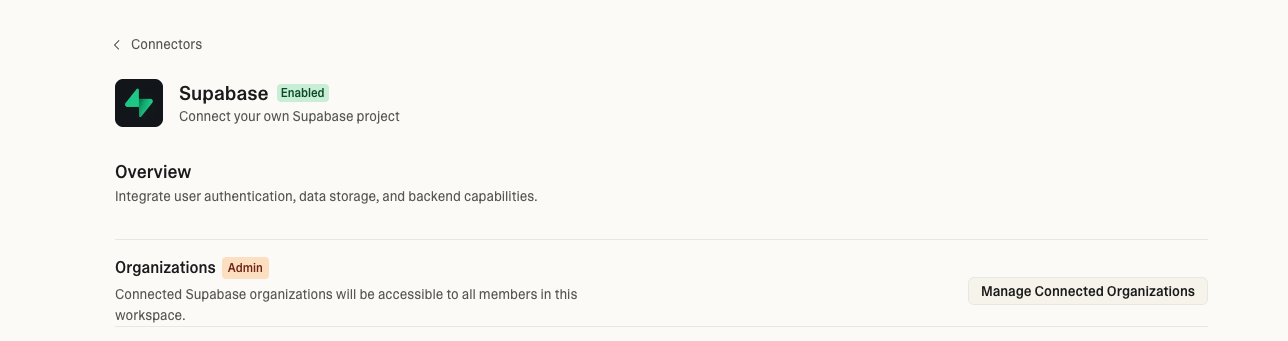
Select your new project:
Step 12: Run Security Advisor
After migration, check for security issues.
Tell Claude:
Run the security advisor on my new Supabase project.
Show me all warnings and explain what each one means.
Claude will:
- Call the Supabase security linter
- List all warnings (RLS issues, auth settings, etc.)
- Explain each one in plain English
- Suggest fixes
Common Issues:
RLS Policy Always True
- What it means: Anyone can INSERT/UPDATE/DELETE without restrictions
- How to fix: Add proper conditions to your policies
Leaked Password Protection Disabled
- What it means: Users can use compromised passwords like "123456"
- How to fix: Enable in Auth → Settings
Step 13: Test Everything
npm install
npm run dev
Verify:
- Data displays correctly
- Sign up / log in works
- File uploads work
- Audio/video plays
You Did It!
Your app now runs on YOUR Supabase with full control.
Troubleshooting
Storage Upload RLS Error
Ask Claude: Create an RLS policy that allows uploads to the bucket
URLs Point to Old Project
Ask Claude: Find and update all URLs with the old project ID
Lovable Shows Blank Page
Wait for sync. If it persists, create a fresh Lovable project and push again.
Need Help?
Describe your problem to Claude — it has context from your session.
Or find me on Discord: @carolmonroe
Related skill: Lovable Cloud Migration — step-by-step guide your AI agent can follow to migrate your project.
Reader margin
What stayed with you?
Leave one small mark in the margin.
Notes from readers
Stuck with something like this? I fix it daily → Services
Carol, this is one of the coolest blogs I've read in a while. Actually, I don't even usually read blogs because they're usually so much fluff. Love your writing style and the topics you cover. I actually came across it after painstakingly pulling my project off of Lovable Cloud lol but keep going girl!
We should work together!